2025-02-17|Tutorial
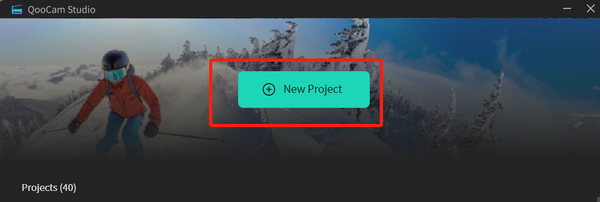
1. Create a new project.
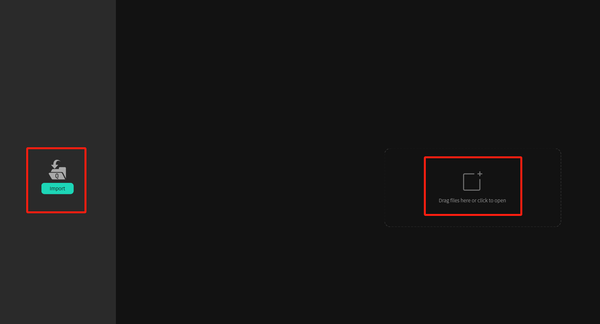
2. Import the footage.
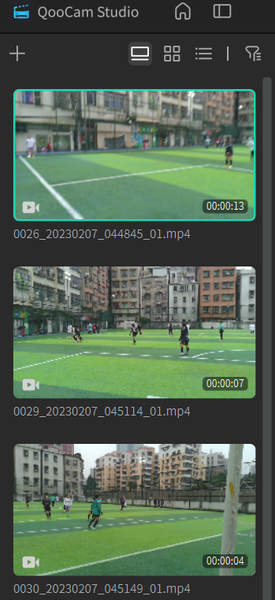
3. Select the footage to be edited in the left sidebar. The border of the selected footage will be highlighted.
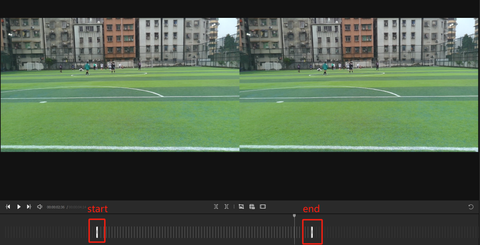
4. You can preview the footage content in the middle and select the part to be clipped at the bottom.
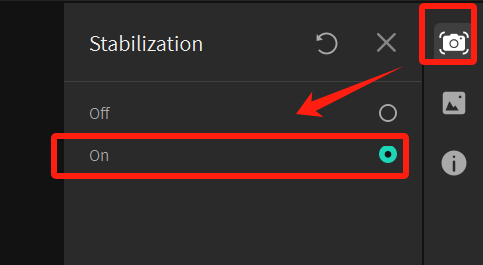
5. Select to enable anti - shake in the right sidebar.
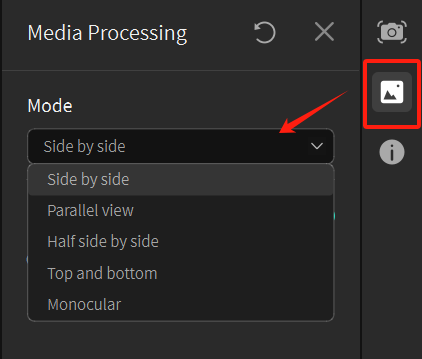
6. Select a mode in [Media Processing]. The modes include: Side by Side (Full Resolution), Parallel View, Half Side by Side, Top and Bottom, Monocular.
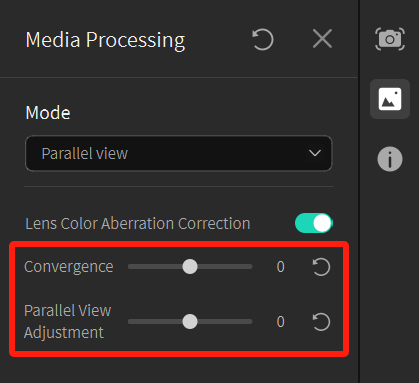
7. You can adjust the horizontal Convergence. If the output mode is selected as Parallel View, you can also adjust the selected part of Parallel View.
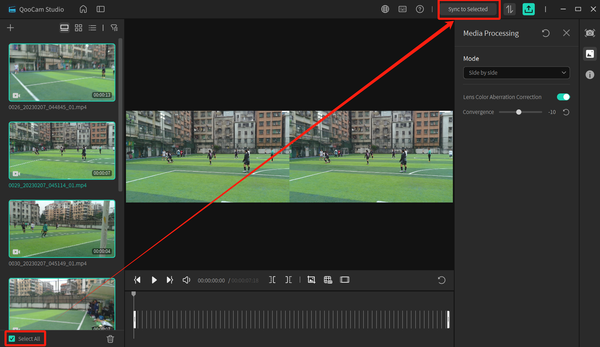
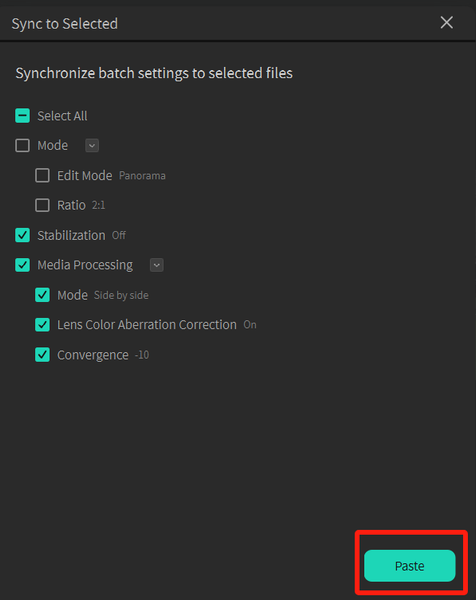
8. If you want to apply the same anti - shake, mode, convergence adjustment, and parallel views adjustment to other videos, you can multi - select or select all the corresponding footage and click the "Sync to Selected" button in the upper - right corner. At this time, the selected videos will be processed in batches.
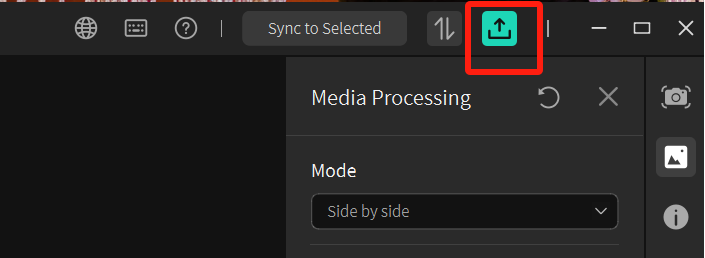
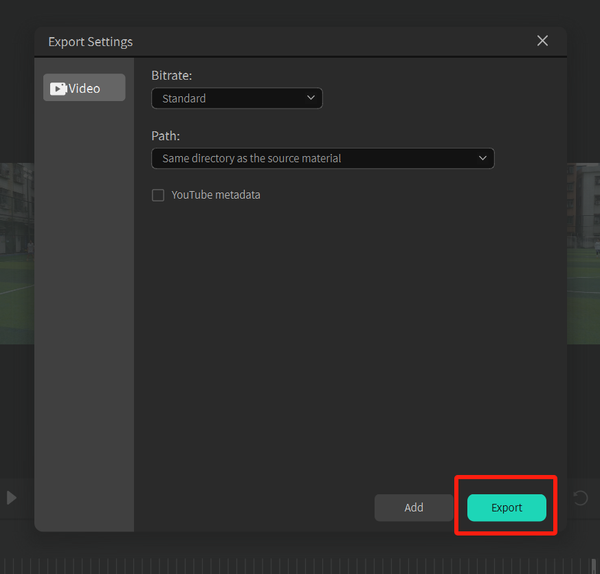
9. Export the edited footage.
Learn more about QooCam EGO>
(If you have any questions, please feel free to contact our service team at service@kandaovr.com for assistance.)



