Get to know Kandao Meeting Ultra
Packing list
Names of Parts
Buttons Description
Indicator Lights Description
Input/Output Ports Description
Remote Controller Description
Standalone Mode Introduction
Preparations & Power-on
Remote Controller Pairing
Network Connection
Start the Conference
Power-off
Record a Conference
Screen Mirroring
Enter the Conference via Link
Through IP Address
AirPlay
Miracast
Share Screen in a Conference
Wired screen mirroring
Wireless screen mirroring
Camera Settings
Camera Settings
Smart Conference Views
Lock and Zoom
360-degree Panorama
Ignore Zone
Video
Mic Noise Reduction
Screen Extension
System Upgrade
Settings Menu
USB Mode Introduction
Preparations & Power-on
Remote Controller Pairing
Start the Conference
Sleep Mode & Power-off
Steps to use AirLink
Steps to use AirLink
Description of Conference Views and Resolution
Description of Conference Views and Resolution
Tech Specifications
Tech Specifications
Kandao Meeting App User Guide
Connecting Kandao Meeting Devices via the App
Preparations
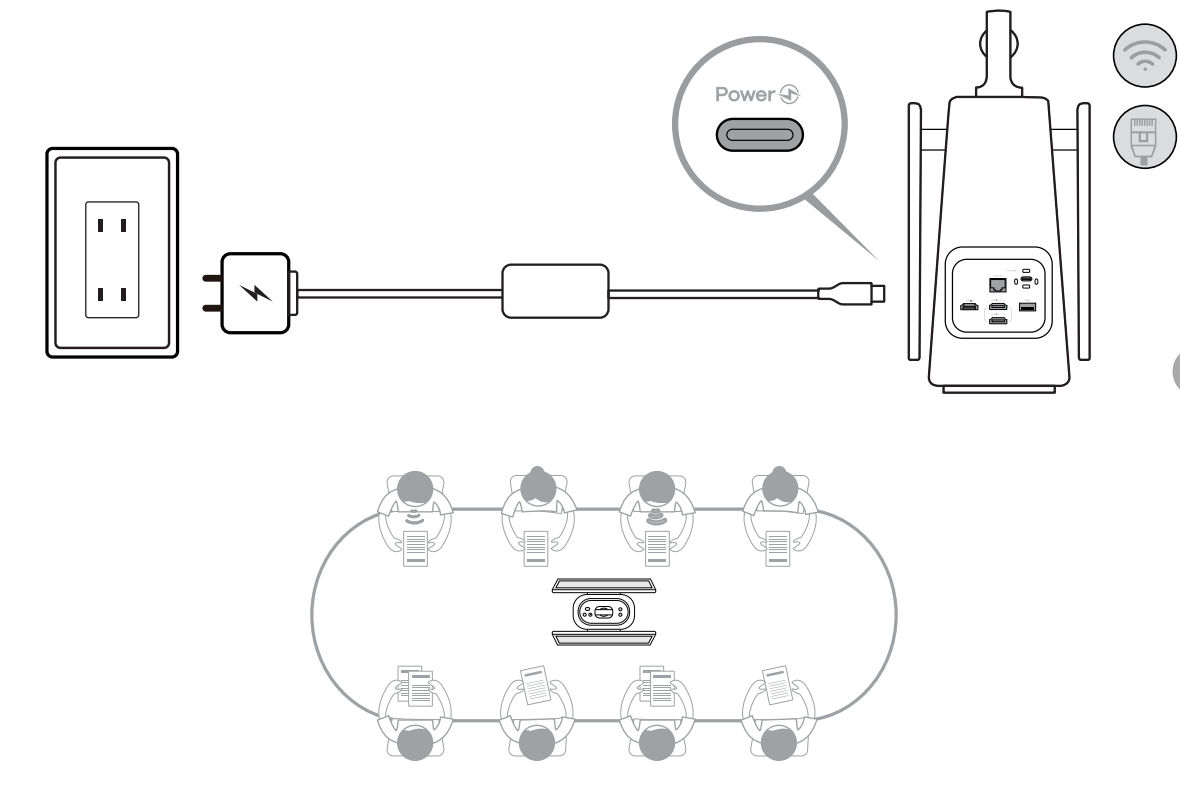
Use the power cord to connect the USB-C power port and the power adapter, or use the network cable to connect the Ethernet port of Meeting Ultra and a PoE router or switch.
*Notes
To mirror the screen onto the TV/monitor, you can use the HDMI cable to connect the TV/monitor with Kandao Meeting Ultra through the HDMI OUT port. (HDMI cable is not provided).
Power-on
Meeting Ultra will automatically turn on when connected to the power adapter.

Did this information help you?




